After each delivery MaxBulk Mailer creates what we call a 'Delivery Report'. That delivery report is automatically added to the end of the connection log visible on the Delivery panel and is also sent to you by e-mail. It provides you with all kind of information about what happened to your message delivery, the settings that were used, the message format, the successfully sent recipients and so on. The delivery report is made of four parts:
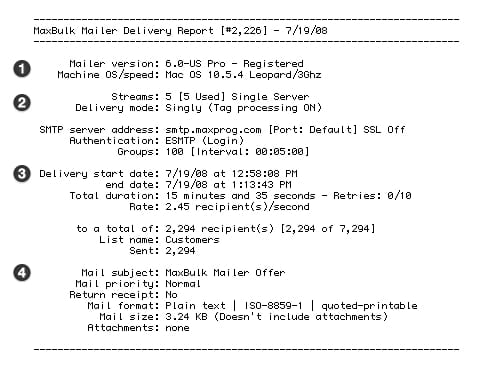
1.- The software version, the operating system name/version and the computer speed. This information is valuable to us when giving support to you.
2.- The number of connections/streams that were set and eventually used, the number of servers and the delivery type. Right after, you find the data for each server including its address, port, security settings and authentication type. Finally the group and interval settings.
3.- The delivery timing and results. This is likely the most interesting part as it shows what happened, how many recipients were delivered, how many were not and how many errors happened during the delivery.
4.- The message information including the charset, the encoding and its size.
For most customers all that information is quite straightforward but the second paragraph of part 3. For the above example it says:

In fact, this part sometimes may confuse you, especially the very first line. It says "to a total of: 2,294 recipient(s)". So far so good. Then "[2,294 of 7,294]". We have here two numbers that may be equal or not. It actually means "[the total recipients pending and checked for delivery out of the total of recipients in your list]". Indeed MaxBulk Mailer only takes into account the recipients that haven't been sent yet and are currently checked. In the example above it looks like 5,000 recipients were already delivered in a previous session and have the 'Sent' status or they were unchecked. You can easily find out whether a recipient has already been delivered, whether it is checked and/or waiting for delivery:

When you send a message MaxBulk Mailer updates each recipient status. Delivered and undelivered recipients can be distinguished easily, looking at their icons. A Card icon means that the message has not been delivered yet, a Paper plane icon means that the message has been delivered. The check box on each line allows you to activate or deactivate recipients for delivery. To find out more about how lists and statuses are handled it is recommended to read
the chapter 8 of the User Guide about Deliveries.
Written by Stan Busk
for Maxprog, LLC



 Maxprog ® by Stan Busk - © 2001-2026 Maxprog LLC. All Rights reserved

