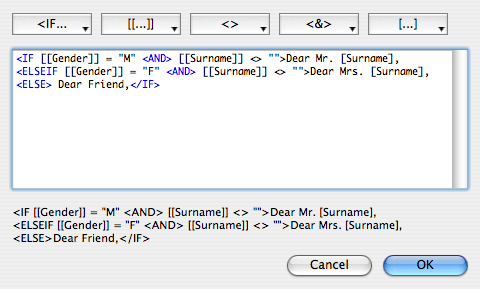
MaxBulk Mailer offers the possibility to add conditional statements to your message. A conditional statement is a set of instructions that you can use to modify your message contents depending on the recipient. This is particularly handy if you need to change your message greeting for example depending on the recipient gender. To insert a conditional statement, use the button on the right of the tag pull-down menu, choose the tag to be used in the condition from the tag pull-down menu, the operator, the value to compare the tag with and the result (the text you want to be used if the condition is verified).
You can write as many rules as you need using the AND and OR instructions and IF, ELSEIF and ELSE switches inside the same conditional statement. A rule is made of a tag, an operator, a value to compare with and a result.
An example of a conditional statement, to customize your messages depending on the recipient's gender might be:
<IF [[Gender]] = "M" <AND> [[Surname]] <> "">Dear Mr. [Surname],
<ELSEIF [[Gender]] = "F" <AND> [[Surname]] <> "">Dear Mrs. [Surname],
<ELSE>Dear Friend,</IF>
This example contains 4 rules. We have renamed an optional field to 'Gender'. In the 'Gender' column we have placed a letter 'M' or 'F' for Male and Female. At delivery time MaxBulk Mailer will choose from: 'Dear Mr. [Surname]', 'Dear Mrs. [Surname]' or 'Dear Friends' depending on which condition is verified first. Of course you can write and modify the conditional statements manually, just follow a few simple guidelines:
 A conditional statement always begins with a <IF tag and ends with a </IF> tag.
When they are placed inside a rule tags should be always surrounded with double brackets like in [[Gender]] .
Use as many <AND> and <OR> instructions as needed. Parenthesis are no allowed.
Use as many <ELSEIF switches as you need following the same syntax as with the <IF tag.
The <ELSE> tag is optional and has to be placed at the end. Only one <ELSE> tag is allowed per statement.
Available operators are *, !*, =, <>, #?, ?#, >, <, >= and <= according to the table above.
Place the value of the rule between double quotes and end with a ">". No spaces are allowed before the ">".
Type the text to be used if the condition is verified.
Despite we have used colors in the example above, styles are not allowed in the statement, only in the result.
You can set tags data type globally from the preferences or just for the current document using the 'Edit | Rename Tags' menu. Available types are 'Text', 'Number', 'Date' and 'Boolean'. All tags are of type 'Text' by default. If you set a tag data type to 'Number' you will be able to use conditional statements with true numeric '>', '<' , ">=" and '<=' operators. The same applies to the 'Date' and 'Boolean' types however you have to make sure you set dates following your operating system date format (MM/DD/YYYY, DD/MM/YYYY....). A 'Boolean' field can accept only two values, you have the choice between using yes/no, True/False or 1/0.