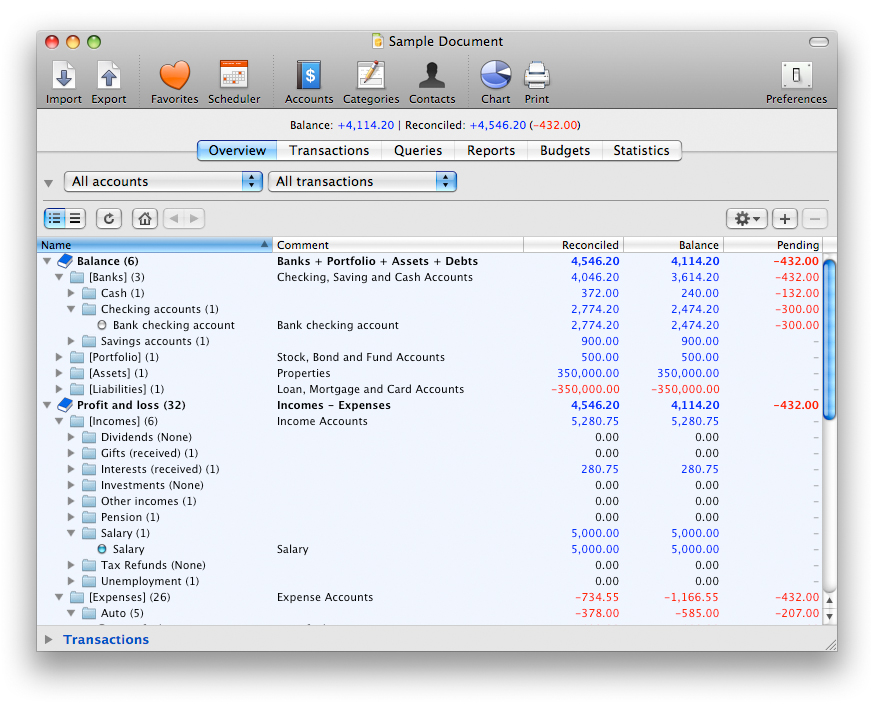
The Overview Panel displays all your accounts structure along with related general and pending transactions total for the time period you selected. Note that the period affects money flow accounts only like Profit and loss. Balance accounts simply display current balance.
This panel is made of two sections, Balance and Profit and loss.
 Banks, Portfolio, Assets and Liabilities are listed in the Balance section.
Incomes and Expenses are listed in the Profit and loss section.
The Overview Panel is nothing less than an account browser. It allows you to look at your accounts either classified by category and type or as a flat list. It also lets you get a quick overview of your situation by displaying the reconciled balance, the general balance and the pending reconciliation amounts. In addition you can set iCash to display only a given account type or category for a determinate period using the two pull-down menus located on the upper left side. When using the hierarchic view all the entries except accounts can be expanded or collapsed to show or hide their contents. You can expand/collapse all entries at once using the browser contextual menu (Control-Click or right mouse button click). Each entry name includes item count where applicable enclosed in brackets. You can open a type or a category by double-clicking on it, go back and forth using the left and right arrow buttons, return to root view clicking on the Home button and switch between hierarchic and flat view anywhere and any time.
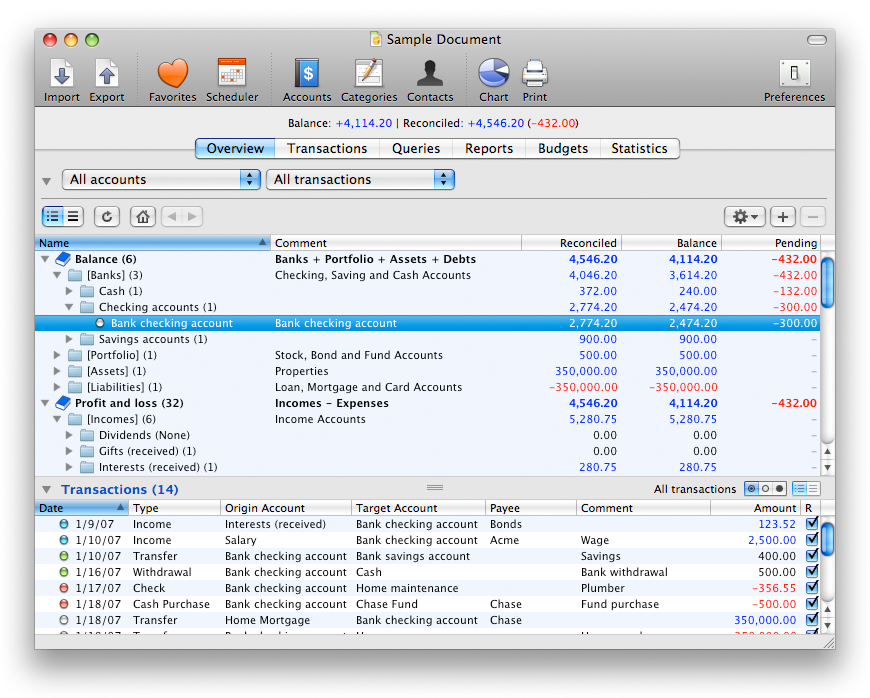
The Overview Panel includes a Transaction browser you can use to quickly display transactions related to a given account, category or account type for a given period. This browser is collapsed by default. Use the disclosure triangle to get it expanded and the window horizontal splitter to resize it.



 Maxprog ® by Stan Busk - © 2001-2026 Maxprog LLC. All Rights reserved