Checking Data Checking Data
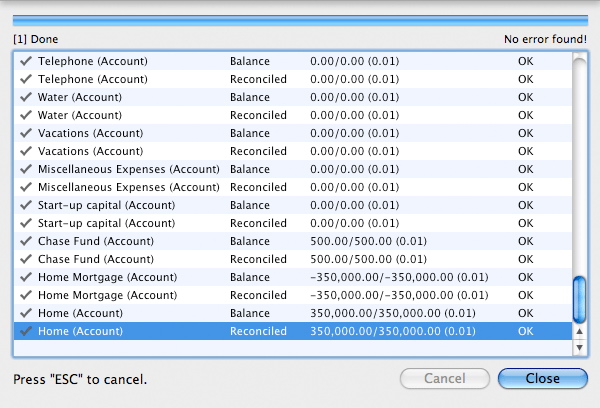
iCash is secure and accurate handling your data and generating reports however a data accuracy checker has been incorporated to allow you to re-calculate every account balance using the transactions to date in order to compare the results with current data. This system also allows you to fix any inaccurate calculation. To check your data open your document with iCash and run the Data Checker selecting the File ı Tools ı Check Data... menu.
Low level diagnose
This command simply checks your iCash document integrity. To diagnose a document, select it first from the File Manager (Recent Documents) and launch the task from the File ı Tools ı Diagnose (Low Level) menu.
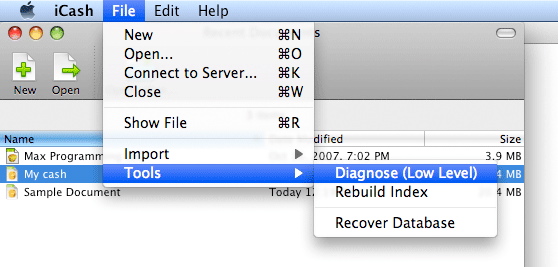
In addition, if you press the Option key on the Macintosh or the Control key on Windows when selecting the menu it also creates a text file with a detailed report. Report output file is named "Diagnosis of Document name" and it is saved on your desktop. If successful, the report file is automatically opened using the default text editor. If first line is "All right!", your document is OK.
Rebuilding a document Index
This command rebuilds your iCash document index. iCash documents are database files made of indexed tables and fields. A database index is similar to an index for an instruction manual or a book. When you want to locate something in a book it isn’t necessary to read the entire book from cover-to-cover every time you want to find a specific piece of information. Instead, you just look in the index and go to the page that contains the information you’re looking for.
A database index is a special piece of information that functions in much the same way. When you perform a lookup of an account or a transaction by name, date, transaction type, and so on, iCash searches the index file for Name or Date, and then displays the results. iCash finds these lookups in just a fraction of a second because the database index file contains pointers that point to the location of the records in the database. This is why it's so much faster, to search an index than to have iCash search the entire database one record at a time.
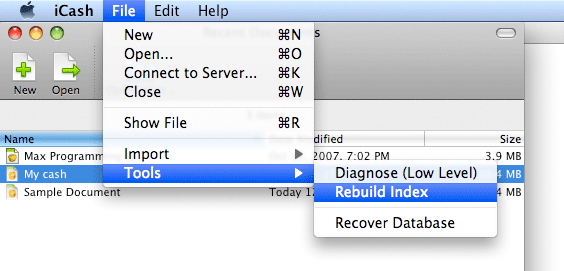
To rebuild a document index, select it first from the File Manager (Recent Documents) and launch the task from the File | Tools | Rebuild Index menu:
Recovering a damaged document
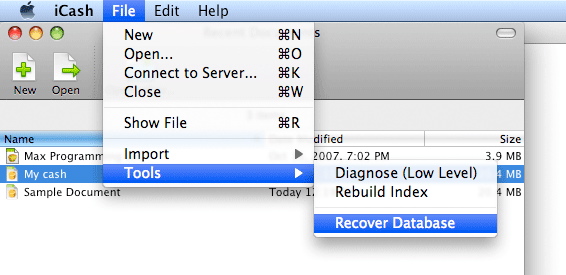
In case of an emergency you can recover a damaged or erratic document using the iCash buit-in database recovery tool. This tool first attempts to create a whole new file with the same structure as the original. If it succeeds all your data is then restored to it. Use this tool as soon as you detect problems with your file. To recover a document, select it first from the File Manager (Recent Documents) and launch the task from the File | Tools | Recover Database menu.
Getting a document Info
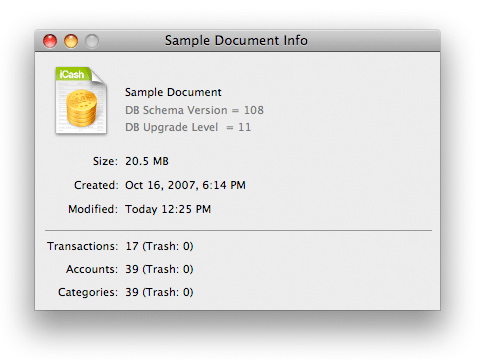
iCash lets you know more about your files just as your operating system does. To get your document info, open it with iCash and select the File ı Get Info menu.
Making backups
Don't forget to make backup copies of your documents regularly. Backup copies can be done directly from inside iCash using the File ı Tools ı Backup copie... menu or directly copying or duplicating the file from the Macintosh Finder or the Windows Explorer. You can also export your data to an XML file and reimport it into a new file to restore the original document.
In addition iCash also performs automatic backups for you to the ~/Library/Application Support/Maxprog/iCash/Backups folder every-time you close a document or open a document that needs updating. Each document backup is saved to a folder with the same name. Only the 15 more recent backup files are maintained. They are labeled with the backup date, for example '2005-10-13 19-43-09' which means 'October 13, 2005 19:43:09'. In addition iCash also performs redundant XML Backups to the '~/Library/Application Support/Maxprog/iCash/XML Dumps' folder.
Please bear in mind that this automatic backup system is useless if you lose your whole hard drive. It is highly recommended to perform backups to an external drive regularly.
|



 Maxprog ® by Stan Busk - © 2001-2026 Maxprog LLC. All Rights reserved