
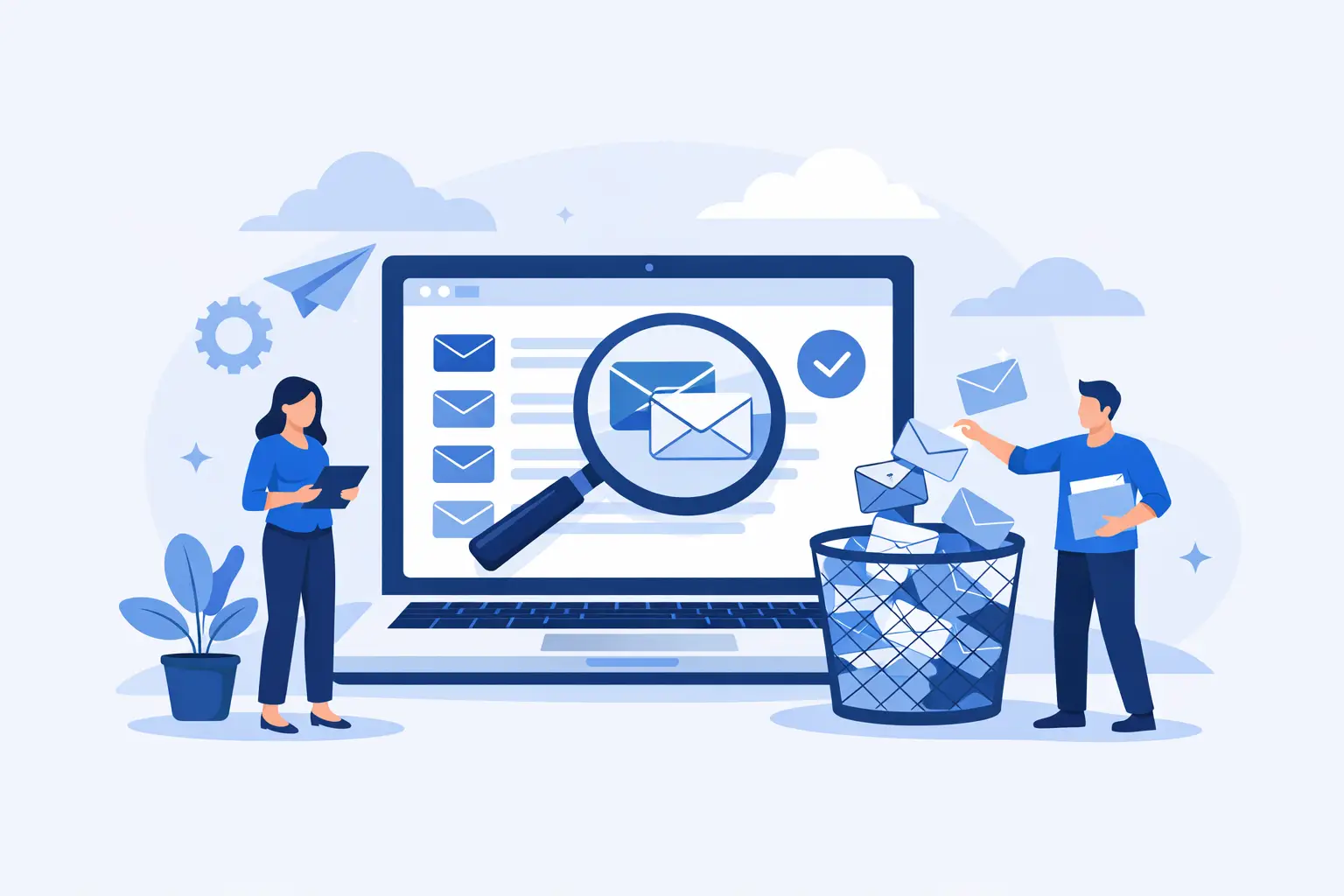
A customer receives the same promotion twice within a few minutes. Your sending report shows two opens, but they came from one person. Meanwhile, you paid to send an extra message that did not need to leave your mail server. Learning how to remove duplicate emails is a small list-maintenance task with a direct effect on campaign cost, reporting accuracy, and subscriber trust.
Duplicate addresses are common in active contact databases. They appear when you import several spreadsheets, combine event registrations with newsletter signups, add contacts manually, or receive lists from different departments. The good news is that duplicates are usually straightforward to find and remove when you use a consistent process before every campaign.
Why duplicate emails cause real campaign problems
A duplicate email address means the same mailbox appears more than once in the list you plan to send. It may be an exact match, such as `[email protected]` appearing twice, or it may be a variation caused by spaces, capitalization, or inconsistent data entry.
The most visible problem is repeat delivery. Sending the same announcement twice can make a business look disorganized, especially when the messages arrive close together. For nonprofits and public relations teams, duplicates can also create confusion around event notices, donation requests, and press releases.
Duplicates also make performance data less useful. If one subscriber receives two copies and opens both, your open count rises without adding another engaged person. The same issue affects click totals, unsubscribe activity, and conversion analysis. You may think a campaign reached 10,000 people when the true number of unique recipients was lower.
There is also a practical delivery concern. Every unnecessary message uses sending capacity and can bring your campaign closer to the limits set by your email provider or SMTP server. On a small list, the effect may be minor. On a list of thousands of contacts, repeated records can create avoidable cost and administration.
How to remove duplicate emails before a campaign
The safest time to clean duplicates is after importing or updating contacts and before composing the final send. Do not wait until a campaign is already scheduled. A clean list should be part of your normal preparation sequence, alongside checking the subject line, previewing the message, and confirming your sending settings.
Start with one working copy of your data
First, preserve the original file. Make a copy of the spreadsheet or export a backup of the mailing list before making changes. This gives you a clear way to recover information if a duplicate-removal setting is too broad or if two records share an address but contain different details you need to review.
Next, gather all relevant source files into one working list. For example, a retailer might combine website subscribers, in-store signups, and customers who opted in during checkout. A nonprofit may combine donor contacts, volunteer registrations, and event attendees. Combining files first makes it easier to identify duplicates across the entire audience rather than only within each individual file.
Normalize the email field first
Duplicate detection works best when email addresses follow the same format. Remove leading and trailing spaces, because `[email protected]` and ` [email protected] ` should be treated as the same address. Convert addresses to a consistent case as well. Email systems generally treat uppercase and lowercase letters in the mailbox name as equivalent for delivery purposes, so `[email protected]` should not remain as a separate recipient from `[email protected]`.
Watch for common import issues. A spreadsheet may include hidden spaces, empty rows, quotation marks, or an email address copied into the wrong column. These problems can prevent an otherwise identical record from matching correctly.
Do not automatically alter the address itself beyond basic formatting. For example, removing periods or plus signs from addresses can be risky because address rules vary by provider and domain. Your goal is to identify records that are truly the same, not to make assumptions about how every mailbox handles aliases.
Choose the right matching rule
For most mailing lists, use the email address as the primary duplicate key. It is the field that determines whether two messages will arrive in the same inbox, so it is usually the most reliable basis for removing repeated recipients.
However, decide what should happen to the contact information attached to each duplicate. One record may include only an email address, while another includes a first name, company, purchase history, or a preferred customer segment. Deleting one record without checking could leave you with the less useful version.
A practical approach is to keep one email record and retain the most complete data available. If your list has a last-updated date, keep the newest record when the data conflicts. If the older record includes valuable permission notes or source information, preserve those details in a separate field before deleting the repeated address.
Review duplicates before deleting them
Automatic removal is fast, but a short review is worthwhile when your list contains valuable customer data or several sources. Look for cases where the same email appears with different names. This can happen when a shared company inbox is used by more than one employee, or when a household uses one address for multiple people.
In those situations, sending one copy is usually still the right choice. But you may want to keep the additional name or organization information in your customer records. The mailing list and the customer database do not always need to hold the same number of records.
Also check for role-based addresses such as `sales@`, `info@`, or `office@`. These may be intentional shared mailboxes. They are not duplicates simply because several people use them. Only remove them when the exact address appears multiple times in the same campaign audience.
Remove exact duplicates and save the cleaned list
Once you have selected the records to keep, remove repeated entries and save the cleaned version as your campaign list. Use a file name that makes its status obvious, such as `Spring-Offer-Cleaned-List` or `Newsletter-Subscribers-2026-07-Clean`.
If you work from spreadsheets, use the duplicate-removal function on the email column after making a backup. If you use email marketing software, import the file into a dedicated list and use its duplicate-cleaning option before sending. A desktop workflow can be especially useful when you need to keep list files under your direct control and repeat the same cleanup process across regular campaigns.
MaxBulk Mailer can help users manage mailing lists before delivery, including removing duplicate addresses so each recipient is targeted once. This is particularly useful when you regularly import contacts from different sources and need a practical check before a high-volume send.
Prevent duplicates from returning
Removing duplicates once is helpful. Preventing them from building up again saves more time over the long term. The best method depends on how contacts enter your system, but a few operational habits work for most small businesses and teams.
Use one primary list whenever possible. If sales, support, and marketing each maintain separate files, create a clear process for consolidating approved contacts before campaigns. Separate source files can remain useful for recordkeeping, but the final send should come from one cleaned audience.
Set a consistent import routine. Before adding a new spreadsheet, check its email column for blanks, formatting errors, and repeated addresses. Then compare it against your current mailing list. This is faster than importing everything and trying to untangle multiple copies after several campaigns.
Keep subscription and permission information with the record. If someone signed up through a website form, a trade show, or a direct customer request, record the source and date. When you later find duplicate addresses, this information helps you retain the right record and respect the recipient's preferences.
Finally, clean your list on a schedule. A monthly review may be enough for a small newsletter. Teams importing leads every day may need to check before each campaign or at least once a week. The right frequency depends on list growth and how many sources feed your database.
Check more than duplicates while you are cleaning
A duplicate-free list is cleaner, but it is not necessarily ready to send. Review obvious formatting errors and remove empty addresses. Consider validating addresses to identify mailboxes that are invalid, inactive, or likely to bounce. Repeated hard bounces should be removed from future campaigns, while temporary delivery failures may need a different follow-up process.
Segmentation deserves a quick check too. A duplicate record can sometimes be a symptom of overlapping segments. For example, a customer may appear in both a VIP list and a recent-purchaser list. Even if each list is clean on its own, combining both groups for one promotion can send two copies unless you deduplicate the final audience.
This is why the final recipient count matters. Compare the number of imported rows with the number of unique email addresses after cleanup. A large difference is not automatically bad, but it should have an explanation. Knowing why 8,500 records became 7,900 unique recipients gives you more confidence in the send and in the results that follow.
A clean mailing list is not glamorous work, but recipients notice the outcome. Make duplicate removal a standard pre-send step, and your messages will feel more deliberate, your reports will tell a clearer story, and your next campaign will start from a stronger list.



Last videos |
|
Ask your questions here |
