
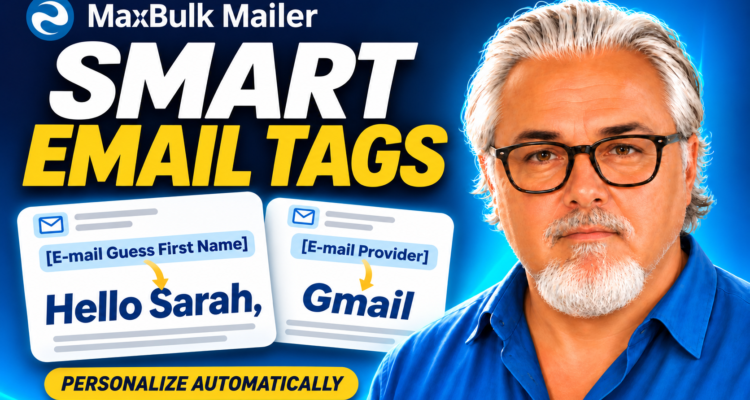
Email personalization is one of the most effective ways to make your email communications more relevant and engaging. However, traditional personalization often requires additional recipient information, such as first names, company names, or other details that may not always be available in your mailing lists.
What if you could personalize your emails using nothing more than your recipients’ email addresses?
With the new Smart Email Tags in MaxBulk Mailer, you can automatically extract useful information from email addresses, identify email providers, classify domains, and even adapt the content of your messages to individual recipients.
What Are Smart Email Tags?
Smart Email Tags are special placeholders that you can insert directly into your MaxBulk Mailer messages. When your emails are prepared for delivery, MaxBulk Mailer analyzes each recipient’s email address and replaces these tags with the corresponding information.
Unlike traditional mail merge tags, which rely on information stored in your recipient list, these tags extract or derive information directly from the email address itself.
All you need is a mailing list containing email addresses. MaxBulk Mailer automatically analyzes each address and makes the extracted information available through its Smart Email Tags.
What Can You Do with Smart Email Tags?
- Personalize email greetings automatically.
- Extract usernames and domain names.
- Identify popular email service providers.
- Distinguish free email providers from other domains.
- Detect generic role-based email addresses.
- Identify domain country codes and categories.
- Guess recipient first names and company names.
- Display different content using conditional statements.
- Create more relevant and dynamic email campaigns.
Available Smart Email Tags
MaxBulk Mailer organizes email tags into three main categories: email address information, email classification, and smart information extraction.
1. Email Address Information
These tags allow you to extract the individual components of an email address and identify its associated email provider.
| Tag | Description |
|---|---|
[E-mail Address] |
The complete recipient email address. |
[E-mail Name] |
The part of the email address before the @ symbol. |
[E-mail Domain] |
The domain name after the @ symbol. |
[E-mail TLD] |
The top-level domain, such as com, net, org, es, or fr. |
[E-mail Root Domain] |
The root domain, including its top-level domain. |
[E-mail Provider] |
The known email service provider or the recipient’s domain. |
Consider the following recipient email address:
[email protected]
MaxBulk Mailer can extract the following information:
- Email Address: [email protected]
- Email Name: sarah.smith
- Email Domain: gmail.com
- Email TLD: com
- Email Root Domain: gmail.com
- Email Provider: Gmail
2. Email Classification
Email classification tags go beyond simply extracting information. They help you categorize email addresses according to their characteristics.
| Tag | Description |
|---|---|
[E-mail TLD Country] |
The country code associated with the email address top-level domain. |
[E-mail TLD Type] |
The domain category, such as Commercial or Education. |
[E-mail Is From Free Provider] |
Returns Yes or No depending on whether the address belongs to a recognized free email provider. |
[E-mail Is Role Address] |
Identifies generic role-based addresses such as info@, admin@, or support@. |
These tags are particularly useful when you want to adapt your communications to different types of recipients without manually classifying your entire mailing list.
3. Smart Information Extraction
Smart information extraction tags attempt to identify useful personal or business information based on the structure of an email address.
| Tag | Description |
|---|---|
[E-mail Guess First Name] |
Attempts to identify the recipient’s first name from the email address. |
[E-mail Company Name Guess] |
Attempts to identify the recipient’s company name from the email address. |
Imagine that your mailing list contains the following email address:
[email protected]
Instead of using a generic greeting, you can write:
Hello [E-mail Guess First Name],
The resulting greeting could be:
Hello John,
All this without having a separate first-name field in your recipient list.
First names and company names extracted from email addresses are educated guesses, not verified information. Similarly, a country-specific domain does not necessarily indicate the recipient’s actual location, nationality, or preferred language. Always consider these limitations when personalizing your messages.
More Than Simple Email Personalization
One of the most powerful aspects of Smart Email Tags is that they can be combined with MaxBulk Mailer’s conditional statements.
Conditional statements allow you to display different sections of a message depending on the information available for each recipient.
Instead of creating multiple mailing lists, preparing separate messages, or manually categorizing your recipients, you can create a single message that automatically adapts its content.
Let’s look at some practical examples.
Example 1: Personalize Greetings Automatically
Not every email address belongs to an individual. Addresses such as info@, sales@, and support@ are often shared by teams or departments.
Using a personal greeting for these addresses may be inappropriate. With Smart Email Tags, you can detect role-based addresses and display a different greeting.
<IF [[E-mail Is Role Address]] = "Yes">
Hello Team,
<ELSE>
Hello [E-mail Guess First Name],
</IF>
A recipient using a role-based email address could receive:
Hello Team,
While an individual recipient could receive:
Hello Sarah,
This allows you to make your greetings more appropriate without maintaining separate lists for individuals and organizations.
Remember to preview the results before sending, especially when recipient names are inferred rather than explicitly provided.
Example 2: Customize Messages for Gmail Users
Different email providers organize incoming messages in different ways. Gmail, for example, may place marketing messages in its Promotions tab.
You can use the email provider tag to display specific instructions depending on the recipient’s email service.
<IF [[E-mail Provider]] = "Gmail">
You are using Gmail. Make sure to check your
Promotions tab if you cannot find our messages.
<ELSE>
Please check your inbox and spam folder
if you cannot find our messages.
</IF>
With a single message, MaxBulk Mailer automatically selects the appropriate instructions for each recipient.
This technique can also be useful for customer onboarding, newsletter subscription confirmations, and instructions for receiving future communications.
Example 3: Adapt Content Based on the Email Provider Type
Sometimes you may want to provide different instructions to recipients using free email providers and those using other email domains.
For example, a company might have a policy requiring customers to use an approved business email address when requesting access to certain services.
<IF [[E-mail Is From Free Provider]] = "Yes">
Please contact us using your approved business
email address to request access.
<ELSE>
Please contact us to complete your account
verification and request access.
</IF>
The same email campaign can therefore provide different instructions depending on the type of email provider detected.
Detecting a free email provider is useful for adapting message content, but it is not a security or identity verification mechanism. An email address using a custom domain is not necessarily trustworthy or associated with a legitimate business. Sensitive information should only be shared through appropriate verification and secure delivery procedures.
Example 4: Personalize Business Communications
If you communicate with businesses, organizations, or professional contacts, the company name extraction tag can help you personalize your messages when company information is missing from your mailing list.
Discover how our software could help
[E-mail Company Name Guess] simplify its
daily email communications.
This can make business communications more relevant without requiring you to manually enter company names for every recipient.
However, because company names are inferred from email addresses, this technique works best with recognizable business domains and should be tested before sending.
How to Use Smart Email Tags in MaxBulk Mailer
Getting started with Smart Email Tags is straightforward.
- Launch MaxBulk Mailer.
- Create a new message or open an existing one.
- Add or import your recipient list.
- Place the cursor where you want to insert an email tag.
- Use the Tags menu to select the desired email tag or enter it manually.
- Optionally, combine email tags with conditional statements.
- Use the Preview panel to check the resulting messages.
- Send a few test messages before launching your campaign.
MaxBulk Mailer automatically processes the tags for each recipient, allowing you to generate individualized messages from a single email template.
Smart Email Tags vs. Traditional Mail Merge Tags
Traditional mail merge tags and Smart Email Tags complement each other.
| Feature | Traditional Tags | Smart Email Tags |
|---|---|---|
| Information source | Recipient list fields | Recipient email address |
| Additional recipient data required | Yes, for additional personal details | No |
| Email provider detection | Requires stored information | Automatic |
| Domain classification | Requires stored information | Automatic |
| Name personalization | Uses stored names | Attempts to infer names |
| Conditional statements | Supported | Supported |
If you already have accurate recipient information, traditional mail merge tags remain the preferred option for personal details. Smart Email Tags are particularly valuable when your recipient information is incomplete or when you need to extract technical information from email addresses.
You can also combine both types of tags within the same message to create even more flexible email campaigns.
Who Can Benefit from Smart Email Tags?
This feature is useful for anyone who regularly communicates with multiple recipients, including:
- Small businesses and independent professionals.
- Newsletter publishers.
- Schools and educational institutions.
- Clubs, associations, and nonprofit organizations.
- Customer support and customer service teams.
- Software developers and software publishers.
- Businesses sending customer onboarding messages.
- Anyone managing permission-based mailing lists with limited recipient information.
Best Practices for Automatic Email Personalization
Automatic personalization can make your communications more relevant, but it is important to use it appropriately.
- Prefer verified recipient information whenever available.
- Preview messages for different types of email addresses.
- Test conditional statements before sending a campaign.
- Use generic greetings when accurate personalization is not possible.
- Do not assume that a domain identifies a recipient’s actual location or language.
- Do not use email classification as a substitute for identity verification.
- Keep your personalization natural, useful, and relevant.
- Send messages to permission-based mailing lists.
Personalization can improve the relevance of your communications, but it does not automatically guarantee higher engagement, better deliverability, or increased sales. The quality of your content and the relationship you have with your recipients remain essential.
Watch the Video Tutorial
In the following video tutorial, I demonstrate how to use the new Smart Email Tags in MaxBulk Mailer, extract information from email addresses, and combine these tags with conditional statements to create dynamic and personalized email messages.
Key Takeaways
- Smart Email Tags automatically extract or derive information from recipient email addresses.
- No additional recipient data is required.
- You can identify email providers, domain categories, country codes, and role-based addresses.
- MaxBulk Mailer can attempt to identify first names and company names.
- Email tags can be combined with conditional statements to generate dynamic message content.
- A single email template can automatically adapt to different recipients.
- Inferred information should always be treated as an estimate rather than a verified fact.
Conclusion
Email personalization does not have to involve complex databases, extensive recipient profiles, or expensive email marketing subscriptions.
With Smart Email Tags, MaxBulk Mailer turns a simple email address into a source of useful information that you can use to personalize greetings, adapt instructions, and create more dynamic email communications.
By combining automatic information extraction with conditional statements and traditional mail merge tags, you can create smarter email campaigns while reducing the amount of manual work required to prepare them.
All from a single message, a single mailing list, and a single application.
Ready to create smarter, more personalized email campaigns? Discover MaxBulk Mailer, the desktop bulk email and mail merge software for macOS and Windows.