
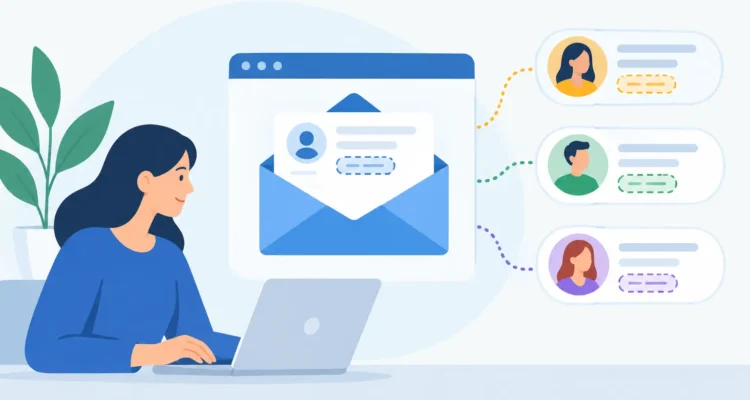
A customer opens an email that begins, “Hello {{FirstName}}.” That placeholder is more than an awkward greeting. It tells the recipient that the sender did not preview the message, check the contact data, or test the campaign before sending it. Merge tags explained properly are a simple way to avoid that problem while making newsletters, offers, announcements, and follow-up emails more useful.
A merge tag lets one email template pull the right information from each recipient record at send time. Instead of creating hundreds of separate messages, you write one message and let your mailing software insert each contact’s name, company, city, account detail, or other stored field. Used carefully, this saves time without making your communication feel automated.
What Are Merge Tags?
A merge tag is a placeholder connected to a field in your contact list. The exact format varies by application. You may see something like `{{FirstName}}`, `[FIRST_NAME]`, or a menu item labeled First Name. When the campaign is sent, the software replaces that tag with the value stored for the recipient.
For example, a single message can read:
`Hello {{FirstName}}, your September price list is ready.`
For Maria Lopez, the delivered email becomes: “Hello Maria, your September price list is ready.” The message is still part of a bulk send, but the greeting reflects information you already maintain in your list.
Merge tags are sometimes called personalization fields, variables, or placeholders. The name matters less than the process: the field in your message must match a column or field in the recipient data. If the contact list has a column called `First Name`, your email software needs to know that this column supplies the First Name tag.
Why Personalization Needs More Than a First Name
First-name greetings are useful, but they are only the most familiar use of merge tags. For a small business, nonprofit, sales team, or public relations office, the real value comes from making routine information specific to the reader.
A distributor can insert a company name and the representative assigned to the account. A nonprofit can include a donor’s local chapter or event location. A service business can reference renewal dates, product categories, or appointment information. A retailer can send region-specific store details. These details can make the email easier to act on, not merely friendlier.
That distinction matters. Adding a name to an irrelevant offer does not create a better campaign. A clear message sent to a well-chosen segment usually performs better than a generic message dressed up with several personal fields. Use merge tags to support relevance, then use list segmentation to determine who should receive the email in the first place.
Merge Tags Explained: The Data Behind the Message
Merge tags work only as well as the data behind them. Before composing a campaign, inspect the contact list you plan to use. Look for blank cells, inconsistent column names, outdated information, duplicate contacts, and fields that contain more than one type of information.
For example, a `Name` column containing “Maria Lopez,” “M. Lopez,” and “Marketing Team” is not reliable for a first-name greeting. A separate `First Name` field gives you more control. Similarly, storing a full address in one field may be fine for record keeping, but separate City, State, and ZIP Code fields are more practical when you need local messaging.
Keep your list focused on information you can use responsibly. Common fields include email address, first name, last name, company, job title, city, customer type, purchase category, account manager, and language preference. You do not need every possible field. Each field should have a purpose in your communications or list management.
During import, map each spreadsheet column to the correct contact field. This is the point where a clean file becomes a usable mailing list. If you accidentally map Company to First Name, the email may greet people with “Hello Acme Inc.” A few minutes spent checking mappings can prevent an embarrassing campaign-wide error.
A Practical Process for Using Merge Tags
Start with a reliable list, then choose only the fields that improve the message. In MaxBulk Mailer, you can import contact data, place personalization tags while composing, and preview the result before sending. The same operating principle applies to any email tool: list first, message second, preview before delivery.
Write the email so it still makes sense if a personalized detail is unavailable. This is especially important for older lists, contacts collected from different sources, and public sign-up forms where people may skip optional fields.
Instead of writing, “Hello {{FirstName}},” consider a greeting format with a fallback value if your software supports it, such as “Hello {{FirstName|there}},”. A record with no first name would then receive “Hello there,” rather than an empty greeting. If fallback rules are not available, use a neutral opening like “Hello,” for lists with incomplete data.
Next, preview several records, not just one. Check a contact with complete information, one with missing optional fields, one with a long company name, and one that contains punctuation or accented characters. If you send multilingual communications, also verify that names and special characters display correctly in both the message preview and the test email.
Finally, send a test to yourself and colleagues. A preview confirms the field replacement inside the application, while a test message confirms what arrives in a real inbox. Check the subject line, preheader, greeting, body copy, and any personalized links or account references. Then schedule or send only after the test looks correct.
Common Merge Tag Mistakes and How to Prevent Them
The most common mistake is using the wrong tag syntax. Copy tags from your software’s insertion menu whenever possible instead of typing them from memory. A tag that looks nearly correct may remain visible in the delivered email if the application cannot recognize it.
Another issue is mismatched data. A tag may be valid, but the underlying column can be empty or incorrectly mapped. Reviewing field coverage before the campaign helps. If only 40 percent of your list has a first name, a personalized greeting may not be the best default for the entire audience.
Be careful with capitalization as well. If your list stores names in all capital letters, `JANE`, the result can feel impersonal even though the tag works. Clean and standardize contact data when practical. For very large lists, make improvements gradually and avoid overwriting original data without a backup.
Do not overload one message with every field you have. “Hello Maria from Acme Inc. in Chicago” can sound less personal than “Hello Maria.” Add details where they clarify an offer, identify the correct contact, or help the recipient take action.
When Merge Tags Are Not the Right Tool
Merge tags personalize a message, but they do not replace segmentation. If customers bought different products, belong to different regions, or are at different stages of a sales process, create separate campaign versions for those groups. A single generic promotion with many tags can become confusing quickly.
They are also not a substitute for permission and list hygiene. Send to contacts who expect your communications, honor unsubscribe requests, remove invalid addresses, and manage bounces. Personalization cannot repair a poor-quality list or make an unwanted email welcome.
For sensitive information, use restraint. Avoid placing confidential account details, payment information, or personal data in a standard email unless you have a clear reason and appropriate safeguards. Often, a general notice directing the recipient to a secure account area is the better choice.
Build Confidence Before Every Send
The best merge-tag campaigns feel ordinary to the recipient. The name is correct, the information is relevant, and the message arrives at the right time. That result comes from clean data, sensible segmentation, and a deliberate preview process, not from adding more placeholders.
Start with one useful field, test it across several contacts, and make it part of your regular campaign checklist. Once the process is dependable, each message can carry more of the personal detail your customers need without creating more manual work for your team.