Answer: To import data from another database application, export it to a standard format like Tab-delimited or Comma-Delimited text. Once you have the data in a format MaxBulk Mailer can handle, click the Import button, select the data file from the dialog, and select Open. You'll then be presented with a screen showing all the fields included in the data file:
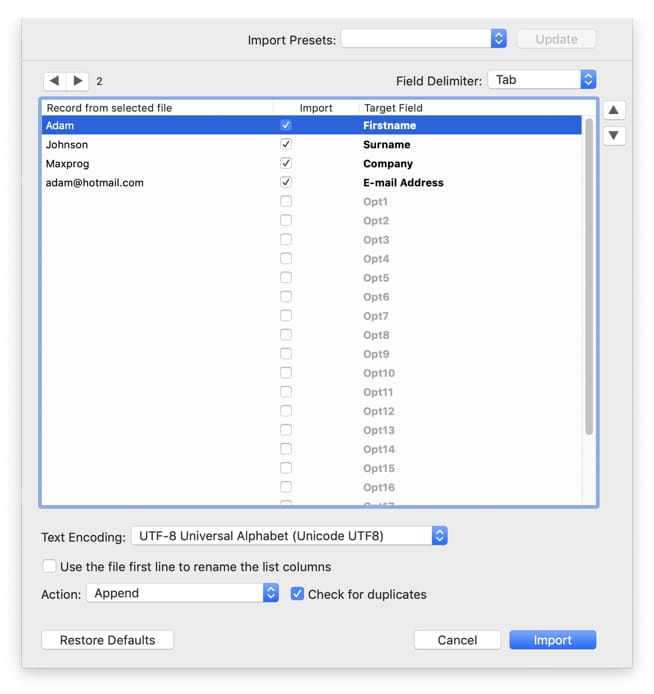
Use the 'Field Delimiter' pull-down menu to choose the proper format and preview the data. You can use the left and right arrows in the top left corner to scroll through each record. Maxbulk assists you during the importation process, giving you the possibility to import data from a file to MaxBulk the way you want, that is, the fields you need in the order you wish to use one of the four available delimiters: tab, comma, colon or semicolon.
Your database field order likely won't correspond with the field order required by Maxbulk Mailer. Just highlight a field and use the up and down arrows on the right-hand side of the screen until it matches the correct field, and repeat as often as required. You can go through file data to check that each field is really where expected. Once all the fields are aligned and adequately checked, click the Import button, and your data will be imported. Important: The MaxBulk Mailer 'E-mail Address' field expects and requires an e-mail address. If a record has no e-mail address or that e-mail address has not been correctly lined up with the MaxBulk Mailer E-mail Address field, the record will not be added. |