

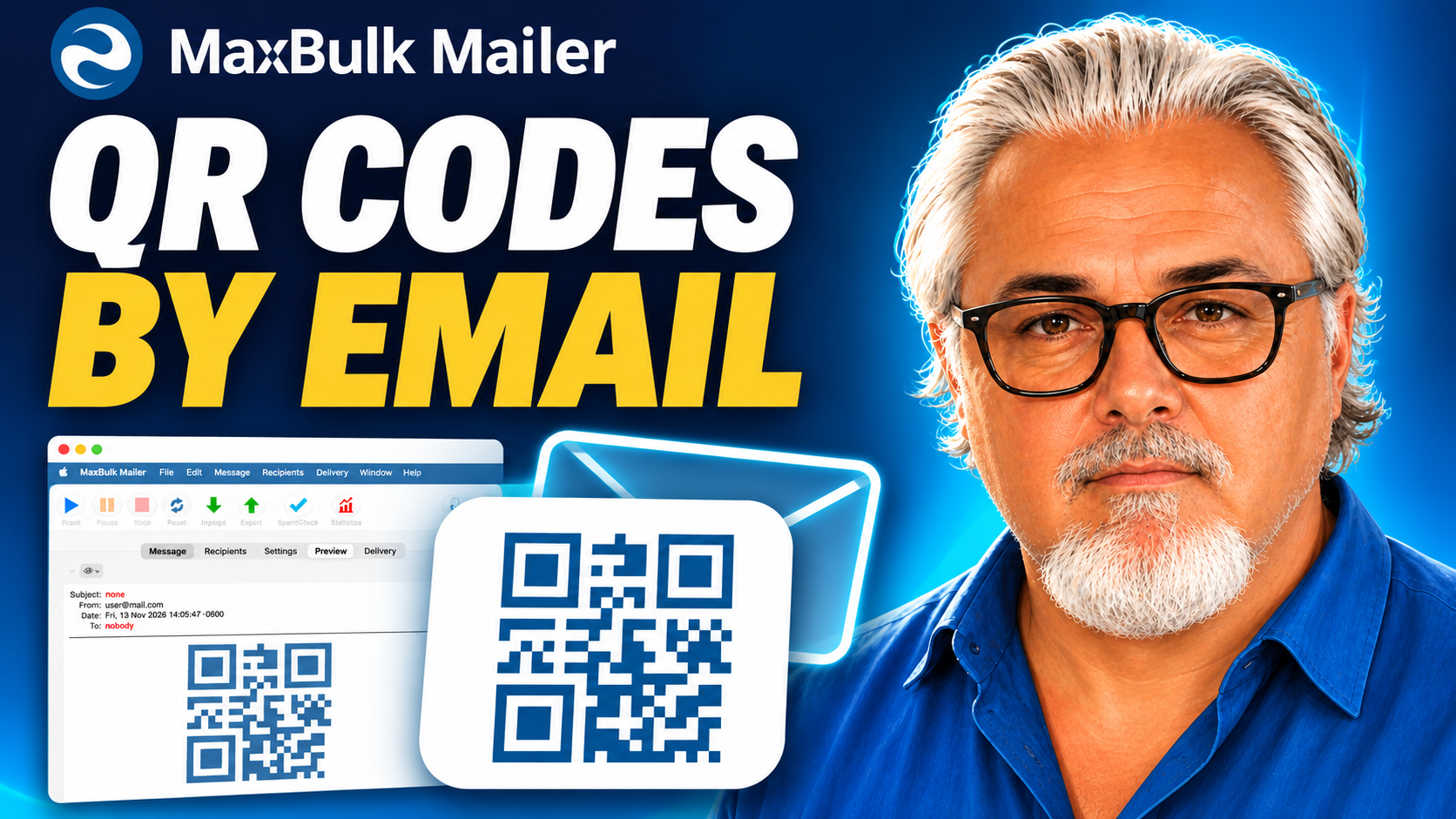
A customer reads your email on a computer and wants to open your offer on their phone. An event attendee needs quick access to directions. A subscriber wants to watch a tutorial on a second screen.
A QR code gives them a convenient way to move from your email to another device. With MaxBulk Mailer 8.9 or later, you can insert QR codes directly into your messages using a dedicated tag.
Why use a QR code when email already supports links? A link is ideal for opening a page on the current device. A QR code is useful for opening it on another device. Include both to give recipients a choice.
What can you send with a QR code?
A QR code can contain a web address that takes recipients to an offer, a registration form, a tutorial, or another useful page.
Offers and promotions
Help customers open a coupon or special offer on their phone so they can keep it handy.
Event information
Provide quick access to a schedule, venue details, directions, or a registration page.
Tutorials and downloads
Let customers open a guide or video on a second device while working on their computer.
Bookings and appointments
Direct recipients to a page where they can choose a date, request a booking, or review their visit details.
1. Choose your destination
First, decide what recipients should see after scanning the code. For a simple campaign, use the full address of the destination page:
https://www.example.com/special-offerOpen that address on your phone before adding it to the message. Check that the page loads correctly, is easy to read, and clearly explains the next step.
For an offer, include the conditions and expiration date on the destination page. For an event, include the location, date, and practical information attendees will need.
2. Explain why recipients should scan
Write a short introduction that explains the benefit. Recipients should know where the QR code leads before they scan it.
Example: a promotional email
Take your offer with you
Scan the QR code below to open our special offer on your phone. You’ll find the offer details and instructions on the page.
Already reading this on your phone? Use the link below instead.
A caption such as “Scan to view the event schedule” or “Scan to watch the setup tutorial” gives the code a clear purpose.
3. Insert the QR code tag
MaxBulk Mailer uses the following tag structure:
{Insert QR Code: data, alignment, size, link, color}Replace the parameter names with your chosen values, using the supported syntax for each option.
| Parameter | Purpose |
|---|---|
data |
The content encoded in the QR code, such as your destination URL. |
alignment |
The alignment of the QR code in the message. |
size |
The size of the QR code. |
link |
An optional destination for clicking the QR code image. |
color |
The color of the QR code. |
Scanning and clicking are separate actions. Scanning reads the content encoded in the QR code. Clicking follows the link assigned to the image. For a simple web campaign, use the same destination for both.
4. Include a regular link
Place a descriptive text link near the QR code. Someone reading your email on their phone can tap the link without needing another device to scan the screen.
A regular link also provides an alternative when images are not displayed.
Example: text below the QR code
Scan the code to open the offer on your phone, or view the special offer here.
Replace the example address with your own destination before sending. Use descriptive wording such as “View the event schedule” or “Watch the setup tutorial” so readers know what to expect.
5. Keep the QR code easy to scan
Use a dark code against a light background and leave clear space around it. Avoid squeezing the code between other images or dense blocks of text.
If you change its color to match your branding, keep strong contrast and test the result with a phone camera.
Check readability before appearance. A QR code that looks attractive in your email still needs to scan reliably. Avoid pale colors, busy backgrounds, and a size that makes the pattern difficult to read.
6. Send yourself a test message
Before sending your campaign, send a test email to yourself. Open the received message on a computer and scan the QR code with your phone. Then open the email on your phone and try the regular link.
Before you send
- The QR code appears correctly in the received email.
- Scanning opens the intended destination.
- Clicking the image opens the correct page, if you assigned a link.
- The regular text link works.
- The destination page displays correctly on a phone.
- The caption explains what recipients will find.
- Any example URLs have been replaced with your own addresses.
If recipients are likely to print the email, test a printed copy too. Always check the delivered message, since that is what your recipients will see.
Can you measure QR code scans?
The QR code contains information; measuring visits requires tracking at its destination.
If your website analytics supports campaign parameters, you can encode a URL like this:
https://www.example.com/offer?utm_source=newsletter&utm_medium=email&utm_campaign=qr_offer&utm_content=qrUse a different tracking value for the regular text link if you want to distinguish visits from the two routes.
These measurements indicate visits associated with the campaign URL. They do not necessarily represent unique people, purchases, or registrations.
Give every QR code a clear purpose
A useful QR code makes a specific task easier: opening an offer on a phone, keeping event information handy, or watching a tutorial on another screen.
Choose a helpful destination, explain the action, and include a regular link alongside the code. Then test the received email before sending it to your list.
Key takeaways
- Use QR codes when moving from an email to another device is helpful.
- Insert the code with MaxBulk Mailer’s dedicated QR code tag.
- Explain where the code leads and why recipients should scan it.
- Include a regular clickable link for convenience.
- Test scanning, clicking, and the destination page before sending.



Ask your questions here |
