
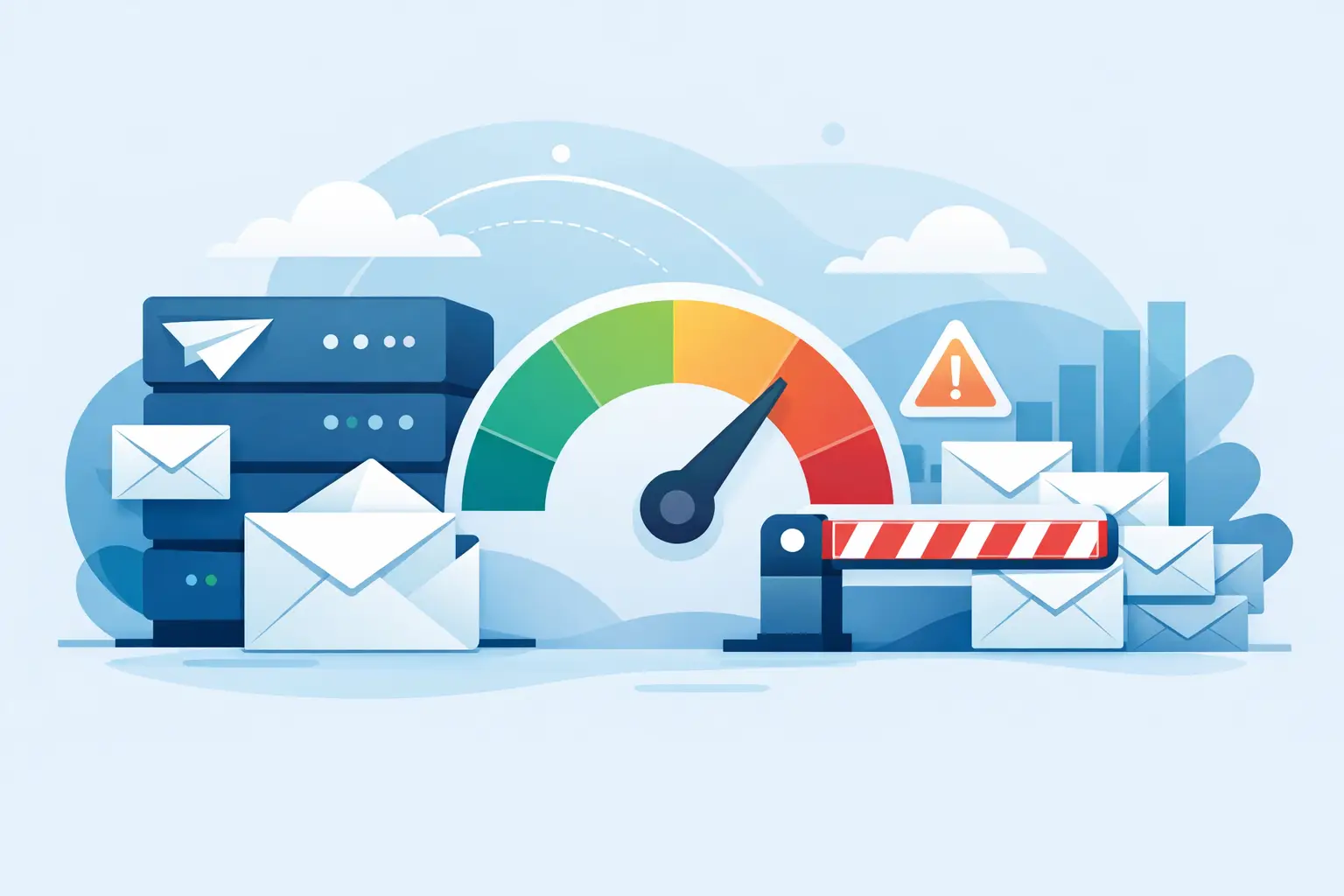
A campaign can be perfectly written, personalized, and ready to go - then stop halfway through the send because the outgoing mail server has reached its limit. Understanding sending limits for email servers helps you avoid that interruption, protect your sender reputation, and plan campaigns that reach the full list without unnecessary delays.
For small businesses, nonprofits, and independent marketers, this is not just a technical setting. It directly affects when your customers receive an offer, when a press release arrives in an editor's inbox, and whether a newsletter is delivered consistently over time.
What are sending limits for email servers?
A sending limit is the number of messages an email provider, hosting company, or SMTP server allows you to send during a defined period. The period may be a minute, an hour, a day, or a rolling 24-hour window. Some providers also restrict how many recipients can appear in a single message or how many simultaneous connections your software can make.
These limits exist for good reasons. Providers use them to reduce spam, detect compromised accounts, and keep shared server resources available for all customers. Even a legitimate sender can trigger protective measures by sending a large volume too quickly, especially from a new account or an address with little sending history.
The number that matters is not always advertised as a simple daily maximum. A server may allow 2,000 messages per day but accept only 100 messages in a short burst. Another may allow a larger volume if messages are spaced out, while a business email account may have different rules from a dedicated SMTP service.
That is why a campaign should be planned around both volume and pace.
Why server thresholds affect deliverability
A message accepted by your outgoing server has only started its journey. Recipient servers still evaluate the sender, the content, authentication, engagement history, and sending pattern before deciding whether to place the email in the inbox, route it to spam, delay it, or reject it.
A sudden spike in volume can look suspicious when your account normally sends a few dozen messages a day. This is especially true for campaigns sent from a new domain, a newly configured mailbox, or an address that has not built a steady reputation with major mailbox providers.
Respecting server thresholds has practical benefits. It reduces the chance of temporary account restrictions, avoids repeated connection errors, and gives recipient servers a more natural delivery pattern. It also makes campaign reporting easier to interpret. When a send is paced properly, you can distinguish ordinary bounces and engagement results from delivery problems caused by an overloaded server.
There is a trade-off. A slower campaign may take several hours instead of several minutes. For most newsletters, promotions, price lists, and customer updates, that is a worthwhile exchange for more dependable delivery. For a time-sensitive announcement, you may need a higher-capacity sending service, a segmented list, or an earlier scheduled send.
Find the limits that apply to your account
Start with the provider that actually sends your email. This may be your web host, business email provider, internet service provider, or a separate SMTP service. Check the account documentation and settings for hourly, daily, recipient, and connection limits. If the information is unclear, ask support for the specific limit for authenticated SMTP sending from your account.
Do not assume that a limit on a website hosting plan is the same as a limit for a mailbox. Likewise, an SMTP relay can have different rules depending on your plan, account age, and reputation.
You should also identify whether the provider counts recipients or messages. If you send one message to 100 people, some systems count that as one email while others count 100 recipients. For bulk campaigns, recipient-based limits are the safer number to use.
Keep a simple record of these details for each sending account: the maximum recipients per day, the maximum per hour, any recommended messages-per-minute rate, and the time at which the daily allowance resets. This small amount of administration prevents a great deal of trial and error later.
Set a campaign pace that fits the server
Once you know the allowed volume, configure the sending speed below the published maximum rather than directly on it. A little margin accounts for follow-up messages, test sends, and unexpected retries. It also helps when a provider applies limits more strictly during busy periods.
For example, if your server allows 500 messages per hour, a setting of 400 to 450 per hour gives you room to operate. If your campaign contains 2,000 recipients, the send can run in batches across several hours. That may sound conservative, but it is far better than reaching the limit after 500 messages and leaving the remaining recipients waiting until the restriction expires.
With MaxBulk Mailer, you can configure delivery thresholds so messages are sent at a controlled rate instead of all at once. This is useful when you manage your own SMTP account and need the freedom to send large campaigns while staying within provider rules.
A sensible delivery plan usually includes three controls: a delay between messages, a maximum number of messages per connection, and scheduled sending at a time when you can monitor the first results. The right values depend on your provider and list size. There is no universal setting that fits every server.
Start carefully with a new sender account
If an account or domain has not sent regular campaigns before, begin with a smaller, well-maintained segment. Send first to your most engaged subscribers or customers who expect your message. Watch for bounces, deferrals, complaints, and unusual delivery delays.
Then increase volume gradually over subsequent sends. This process is often called warming up a sender, but the practical goal is simple: establish a stable history of sending wanted email at a consistent pace. A server limit tells you what is technically permitted. Your sender reputation helps determine what is wise.
Prepare the list before the send starts
Server limits cannot fix a poor contact list. Invalid, outdated, or duplicate addresses waste your allowance and raise the bounce rate. Before scheduling a campaign, remove duplicates, correct obvious formatting problems, and exclude addresses that previously produced permanent delivery failures.
Permission matters just as much. Send to people who subscribed, purchased from you, requested information, or otherwise have a clear reason to hear from your organization. A large list with weak permission can create spam complaints even when every technical sending limit is respected.
It also helps to segment the list. Instead of sending one broad message to every contact, separate customers by location, product interest, language, purchase history, or relationship to your organization. Smaller, relevant segments often produce better opens and clicks, lower complaints, and more manageable delivery volumes.
Before the full campaign, send a test to yourself and a small internal group. Check the subject line, personalization fields, images, links, plain-text version, and unsubscribe instructions. A test uses only a few recipients but can prevent a mistake from consuming thousands of sends.
Watch for signs that you are sending too fast
Most server-limit problems leave clear clues. Your mailing software may report a temporary SMTP error, connection refusal, rate-limit message, or a notice that the account has exceeded its quota. Recipient servers may also defer mail, meaning they ask the sending server to try again later.
Do not respond by repeatedly restarting the campaign at full speed. That can create more failed attempts and extend the restriction. Instead, stop the send, read the server response, and identify whether the issue is an hourly limit, daily quota, authentication problem, or recipient-server deferral.
The following patterns deserve attention:
- A campaign stops after roughly the same number of messages each time.
- Temporary errors appear only when the delivery rate is high.
- Messages resume after an hour or after the next daily reset.
- Bounces rise sharply after importing a new list or sending to an older segment.
When the cause is a quota, lower the rate and resume only with recipients who have not already received the message. When the cause is poor list quality, clean the data before continuing. When errors point to authentication, verify your SMTP username, password, port, and security settings before sending again.
Build a repeatable sending routine
The easiest way to stay within email-server limits is to make delivery control part of every campaign, not an emergency fix. Import and review the list, remove known bad addresses, compose and preview the message, send a small test, set the speed and schedule, then review delivery and engagement results after the campaign begins.
Keep notes on what worked. If 300 messages per hour delivers consistently without errors, save that setting for the account. If a provider changes its rules, update your sending profile before the next major mailing. This is particularly useful when you operate more than one sender address or send on behalf of different organizations.
A controlled sending pace may feel less dramatic than pressing Send and watching thousands of messages leave at once. But reliable email marketing is built on repeatable habits: a clean list, expected content, accurate settings, and a delivery rate your server can support. Give your campaign the time it needs, and your recipients are more likely to receive it when it matters.



Ask your questions here |
