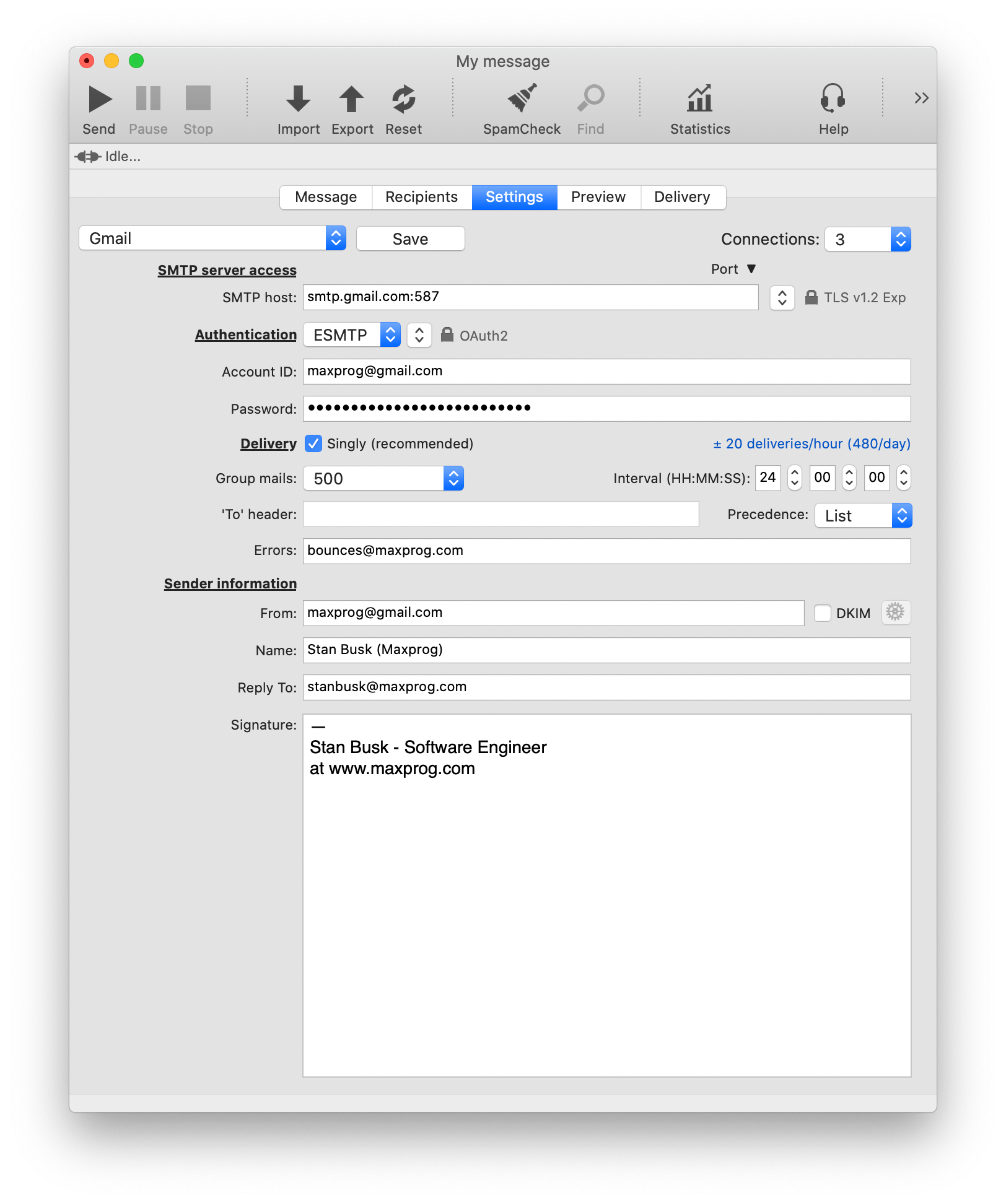
Before being able to send a message you need to create at least one email account. The 'Settings' panel allows you to create as many accounts as you need and lets you choose from a wide range of delivery options. Typing the settings is actually the hardest part since you have to know several server related data such as the SMTP address, your user ID, your password and the authentication scheme you have to use. This information was given to you by your ISP or your web hosting company at some time and you are very likely using those settings already with your other email software. You will find below a detailed description of each field.
- SMTP host: Your SMTP host address and port if different from default (address:port).
- SSL: To establish a SSL v2, SSL v2/3, SSL v3 or a TLS v1 secure connection (Pro Only).
- From: Your email address in the form [email protected]
- Name: The name that will appear in the 'From' header.
- Reply-To: Optional header you can use to get replies sent to a different email address.
- Errors: Optional header you can use to get the errors sent to a different email address.
- Signature: Your signature. It will be appended to your message. (Plain text format only)
Select an authentication scheme. Possible choices are None, POP, ESMTP and APOP. Authentication schemes are mechanisms to verify your identity prior being granted to send a message through a server. It is usually done by providing a user ID, a password and by selecting an authentication method.
 POP and APOP Authentication:
- POP Server: The POP server address and port if different from default.
- Account ID: Your account ID.
- Password: The password to access this POP account.
- SSL: To establish a SSL v2, SSL v2/3, SSL v3 or a TLS v1 secure connection (Pro Only).
ESMTP Authentication:
- Account ID: Your account ID.
- Password: The password to access this ESMTP account.
- Authentication type: From Login (default), Plain, MD5 Challenge-Response
Note that the Port parameter is optional on both the SMTP and the POP server address. Provide a port number only in the case you are not using the SMTP default port 25 or the POP default port 110 (Secure SSMTP 465 and SPOP3 995 respectively).
The Authentication setting is almost always required and some server-side anti-spam software may look for an Authentication header to determine whether your message is legitimate.
Connections: MaxBulk Mailer lets you open several simultaneous connections to your SMTP server. With a fast internet connection this can speed up email delivery quite significantly, but with a modem connection, you should keep it to one or two connections only. You should also double-check your agreement with your ISP as to how many SMTP connections you are allowed to use at once. Note that using 20 connections is not necessarily faster than with 5 connections because of your system resources and your connection bandwidth.
Burst Mode: MaxBulk Mailer offers the possibility to open several simultaneous connections to as many different servers as you wish. Burst Mode is simply the possibility to use more than one server at once. All you need is at least two servers. You can activate this option by selecting the 'Burst Mode' menu from the Server pull-down menu and by checking the servers you want to use from the list. MaxBulk Mailer will then use the servers you have selected with their corresponding settings. Note that this feature is closely related to the 'Connections' setting thus using 10 connections with 2 servers will open 5 connections per server.
Group Mails: Your server may limit the number of messages that can be sent during a session. You can easily match your server requirements by using the Group Mails option to specify how many messages have to be sent on each session and by setting an Interval between each batch. The bigger is your group setting and the smaller is you interval, the faster you will finish but the more likely you're ISP will flag your message as spam.
Bulk Preferences: If you don't use the personalization options of MaxBulk Mailer, you are missing out on one of its' most powerful features. However, you can speed up the processing and the delivery of your messages that aren't personalized by deactivating the 'Singly' option. If the 'Singly' option is activated messages are sent one by one, showing the recipient "To:" header and allowing the email-merge tags to be replaced by their corresponding values depending on each entry. If the 'Singly' option is deactivated messages are sent to all recipients at once. It is called the Bulk mode. Note that in both cases your list is never sent to the recipients. In bulk mode the default 'To' header is automatically set to 'Undisclosed-Recipients'. You can change that text to whatever you prefer. In bulk mode it is highly recommended to use small groups rather than 'All at once' to avoid 'Insufficient storage' SMTP errors. The precedence option can slightly impact the delivery priority by informing the server about the nature of the message.
Signature: The signature is a piece of text that will be appended to your message. We recommend you to consider using it to indicate how your recipients can unsubscribe from your list. It is also worth considering reminding people of why they are on your list and/or how they subscribed to it, particularly if you only use it once a month or less. Note that the signature only applies to messages in the Plain Text format.
Once you are finished with your settings you can save your account by selecting the "Save new account as..." menu from the account pull-down menu or by clicking on the 'Save' button.