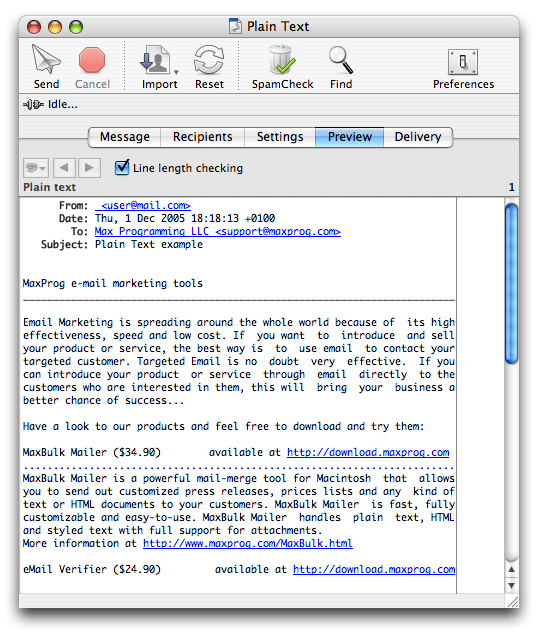
MaxBulk Mailer 'Preview' panel allows you to easily check how your final message looks like, once tags have been processed, all the pictures have been placed and the signature has been appended. It also allows you to check all the message headers and, in the case they contain tags, whether they include the intended data. You can check each individual record by using the left and right arrows on the top left.
Built-in preview is able to display all the message formats supported by MaxBulk Mailer from 'Plain Text' to 'Web Page'. However, if your message contains styles or HTML code, you may want to preview it using a standard browser as well. You can do that by using the 'Preview in Browser' (eye icon) pull-down menu and by selecting a browser from the list (default Browser, Safari, Internet Explorer, Netscape Navigator, Opera, Mozilla or iCab). That list also contains a 'View Source' menu to display the HTML source behind a given rendered HTML message.
Old email software may rewrap incoming messages to 72 characters per line following the 'Philip Bar™' formatting. This has historical reasons dating back to days when all email was plain text and expected to fit on a 80 column by 24 (or 25) line screen. To make email that had been forwarded easy to read when the quoting character, usually a <, was added to each line, it was customary to limit the length of each line to 72 characters. Use the Line Length Checking option to check how your message would look like.