The preference window is made of five tab panels labeled: Document, General, Tags, Misc, Headers and Delivery:
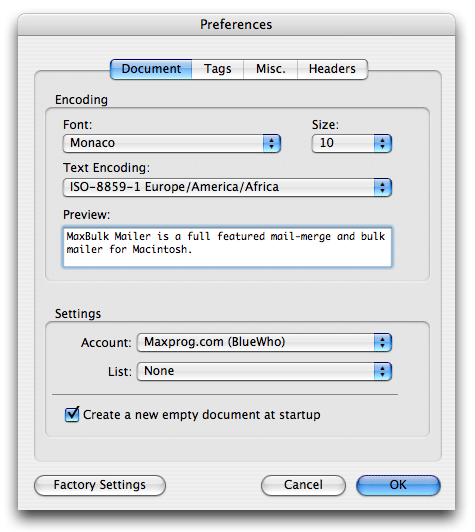
 Document
Appearance
- Font: Set the document default text font. (Message body, subject, signature and Preview)
- Size: Set the document default text size. (Message body, subject, signature and Preview)
Saving Documents
- Save Connection Log: Save a copy of the connection log into the document file.
- Save Recipients list: Save a copy of the current recipient list along with the delivery status of each entry into the document file.
default Settings
- Format: default message format for new documents.
- Text Encoding: Document default text encoding.
- Account: default account for new documents.
- List: default list for new documents.
Note: Encodings not only determine the way your message looks like when editing but also the language encoding used when sending. By default type is Monaco 10 and the encoding is "ISO-8859-1", right for Europe/USA. You have 34 encodings to choose from depending on your country and language.
General
Startup
- Check for updates at launch
- Create a new empty document at startup
Recipients import
- Title case recipient's name and surname: Change the case of each imported record so first name and surname get capitalized.
- Check for duplicates: If enabled you will only import one single instance of an email address thus saving sending multiple copies of your message to that person.
- Extract recipient's name from e-mail address: Extract the recipient name from the email address if it doesn't exist.
- Create an error report: Create a detailed error report after importing the recipients when errors or duplicates entries have been found.
Remote Lists
- URL: The URL of the remote list manager script.
- ID: The user ID of the script administrator.
- Password: The password of the script administrator.
Remote Pictures
- URL: Remote pictures URL to be used in place of the 'Base href' tag.
Tags
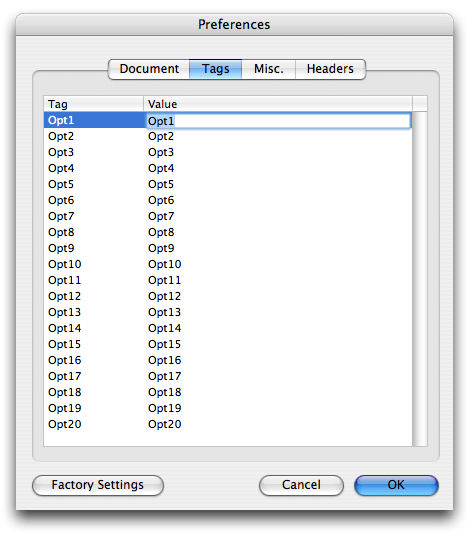
All tags or list columns can be renamed but 'Email address'. In addition, MaxBulk Mailer Pro offers 20 custom columns you can use to store recipient's data and insert it into your messages using Tags. default tags are labeled Opt1 to Opt20. You can rename those tags to something that will make more sense to you like [Address], [Suburb] or whatever.
These changes are global and will affect all future documents so if you need to rename those optional tags for the whole application this is the right place to do it however if you want to rename them for the current document only, use 'Rename tags...' menu instead.
It is strongly recommended to use simple and short words with no accentuated characters nor punctuation.
You can also set tag data type between 'Text', 'Number', 'Date' and 'Boolean', affecting sorting and conditional statement results. All tags are of type 'Text' by default. If you set a tag data type to 'Number' you will be able to sort your list and use conditional statements with true numeric '>', '<' , ">=" and '<=' operators. The same applies to the 'Date' and 'Boolean' types however you have to make sure you set dates following your operating system date format (MM/DD/YYYY, DD/MM/YYYY....). A 'Boolean' field can accept only two values, you have the choice between using yes/no, True/False or 1/0.
Headers
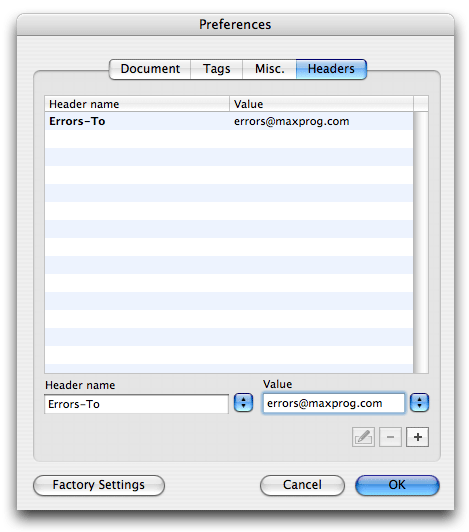
The Header editor lets you add custom and standard headers to your mail-out. Headers are optional fields that appear inside the email header part, all that "jargon" at the beginning of an email. Many people include an Organization X-Header and sometimes in the Comments X-Headers information on how to un-subscribe can be included.
MaxBulk Mailer includes 15 custom and standard headers:
Cc Add a Carbon Copy address header. Your email will appear Cced to that address.
Comments Add a comment about your message or yourself.
Organization Add information about your company or organization.
Errors-To Ask recipient Mail Exchanger server to send bounces to a different address.
Return-Path Set the message return path. Note that this header most of the time can't be overwritten.
User-Agent Add the name and version of the mailer.
X-Mailer Same as User-Agent.
X-Confirm-Reading-To Ask for a delivery receipt.
X-Legal Add legal information about your message.
List-Unsubscribe The email address to unsubscribe from your list.
List-Subscribe The email address to subscribe to your list.
List-Owner The email address of the owner of the list.
List-Help The email address to get help about the list.
X-List-Host The list hosting server.
List-Software The software used to send to the list.
You can also add headers that are sent by default as for example the 'From' header. MaxBulk Mailer will detect such cases and will use the one from the header editor rather than the default.
Press the 'Factory Settings' button to reset all the preferences to default.
Delivery
Delivery
- Send delivery report by e-mail: Activate whether you want a Delivery Report to be sent by e-mail back to you or to a different address when delivery is done. The summary report only display the overall result. The detailed report also add a list of the sent recipients.
- Output connection log to a file: Create a copy of the connection log to your hard disk.
- Preview message during delivery: Force MaxBuk to display a preview of each message on the Preview panel during the delivery process.
- Delivery complete sound: Play the selected sound once the delivery is done.
- Next Delivery ID#: Set the next delivery number. The number is used on the delivery report and on the 'History' window.
Connection dropped by server
- Resume in: Set the delay before attempting to reconnect to a server after a connection drop.
Advanced
- Encoding: Set the message encoding.
- HELO/EHLO: Set the greeting string when connecting to the SMTP server.
Click on the 'Factory Settings' button to reset all the preferences to default.
There may be times when you need to use MaxBulk Mailer on a different computer but transferring lists and preferences is everything but easy. MaxBulk Mailer gives you the possibility to export and import back selected settings for backups or for transferring settings and lists between two computers. The feature is available by selecting the 'File > Settings > Export' and 'File > Settings > Import' menus. It allows you to backup or transfer MaxBulk Mailer preferences, your email accounts, your recipient lists, your templates and your favorites. You can both select what settings to export and what settings to import. This feature is compatible between Mac OS and Windows versions of MaxBulk Mailer.