Depending on the format you have chosen for your message you will be able to format your text in different ways:
 Plain Text Plain Text
The Plain Text format only offers text alignment tools to center, justify, right align and rewrap your text along with the possibility to remove styles, if any, using the default font and size. Use the corresponding menus from the 'Format' top menu, 'Rewrap Text', 'Align to Right', 'Center', 'Justify' and 'Make Plain Text' or the alignment buttons located on the left, right above the message field.
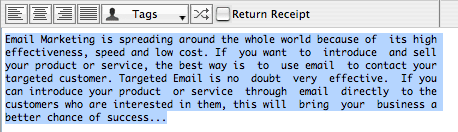
Note that with the Plain Text format, the center, justify and right alignments are done simply inserting spaces into the text. The Rewrap Text function not only left align but also reformat all lines to 72 characters long removing all the inserted spaces. You can remove styles using the message contextual menu 'Make Plain Text' or the shift+cmd+T shortcut.
Styled Text
The Styled Text format allows you to right-align, left-align and center your text and offers a wide range of rich formatting options like fonts, colors, sizes, bold, italic and underline. All the formatting options are accessible both from the formatting toolbar located right above the message field and the 'Format' top menu.
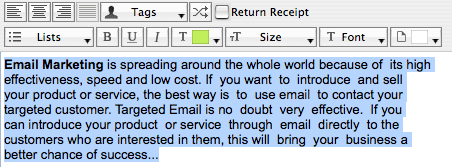
The formatting toolbar also lets you create definition and bullet lists and change the message background color.
Note that Styled Text format is converted into HTML code right before the delivery so you can perfectly use standard HTML tags inside your message. Those HTML formattings will be passed to the final message. For example, to justify your text just type the following:
<div align="Justify">
Your justified text here.
</div>
Besides, you can add tables and display your text formatted into columns. Just create the table with your favorite HTML editor and paste the code into the message removing all the line breaks. For example:
<table><tr><td>Product</td><td>Price</td></tr><tr><td>eMail Verifier</td><td>$24.90</td></tr><tr><td>eMail Extractor</td><td>$16.90</td></tr></table>
Before sending your message to your recipient list it is highly recommended to preview or send a test message to yourself to make sure the final email actually looks like as you expect.
|