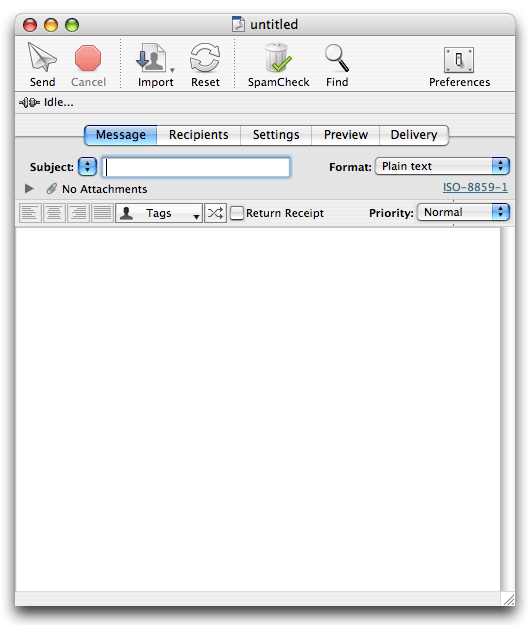
Launch MaxBulk Mailer - On launching MaxBulk Mailer, you are up in the Message panel, where you can start typing your message.
Type the subject - Use the subject field to place a brief summary of what your message is about. It is recommended that you keep the subject to 40 characters or less. MaxBulk Mailer also supplies a number of predefined prefixes ( 'News', 'Announce', 'Information' and 'Press Release') that you can insert to your subject to help your recipients identify the type of message you are sending. You can create new ones and store them for later use.
Compose your message - You can drop text files or paste text from any other text editor to the message field. If you want to, you can also spice up your message by sending it as styled text or using HTML code, with styles like Bold, Underline, larger font size, or a different font color. Note that styles and HTML increase the size of the actual email and perhaps not every one will be able to read it.
Set the priority(Optional) - Priority doesn't make your mail reach the recipient faster but only produces some effects on recipient side: subject will show itself with a different color for example.
Add attachments (Optional) - Maxbulk Mailer also supports the inclusion of attachments or enclosures, so you can add pictures, a Microsoft Word document, an Acrobat PDF or any type of document to your email out. To add an attachment just drag and drop the corresponding file to the clip icon, to the attachment list or directly onto the message. Set the encoding if necessary. Please read carefully the Attachments chapter to learn more on attachments and encodings. Inline attachments and pictures are allowed.
Ask for a Return Receipt (Optional) - Some email readers include an option that forces recipients to send a receipt back to the sender when opening incoming mails. It works properly with Netscape mail client for example and likely will be implemented in most mail readers in a near future. Use this feature carefully when sending mass mailings to avoid being flooded by thousands of receipts!
Set the message format - Depending on the type of message you are about to send you should select the format that best suits your needs from Plain Text, Text/HTML, HTML only, Web Page and Styled Text.
- Select Plain text for plain text messages.
- Select Text/HTML for a combination of a plain text version and an HTML version of your message.
- Select HTML only for an HTML message with no plain text alternative.
- Select Web Page to send a copy of an online Web page to your recipients.
- Select Styled Text if you want to use styles like Bold, Italic, Underline, Color, Font, Size, Bullet lists...
Note that MaxBulk Mailer also supports:
- Plain Text with attached or inline attachments.
- HTML and Text/HTML messages with online or inline pictures.
- Styled Text with online or inline pictures.
- Web Page (by URL)
An inline attachment in a Plain Text email can be placed anywhere in your message when an attached attachment will be placed depending on the recipient email software. An inline picture (HTML, Text/HTML and Styled Text) is embedded directly into the message when an online picture will be fetched from the internet when the recipient open the message. Read the 'Message formats' and the 'Attachments' chapters for more information.
Next chapter explains each format detail-fully.